Investigate one conversation
Open a single conversation and see which turn broke which rule, and why.
Use this when somebody sends you one bad call and wants to know what went wrong in it.
Open Conversations in the left rail.
Or press Ctrl and K, or Command and K on a Mac, and search for what was said.
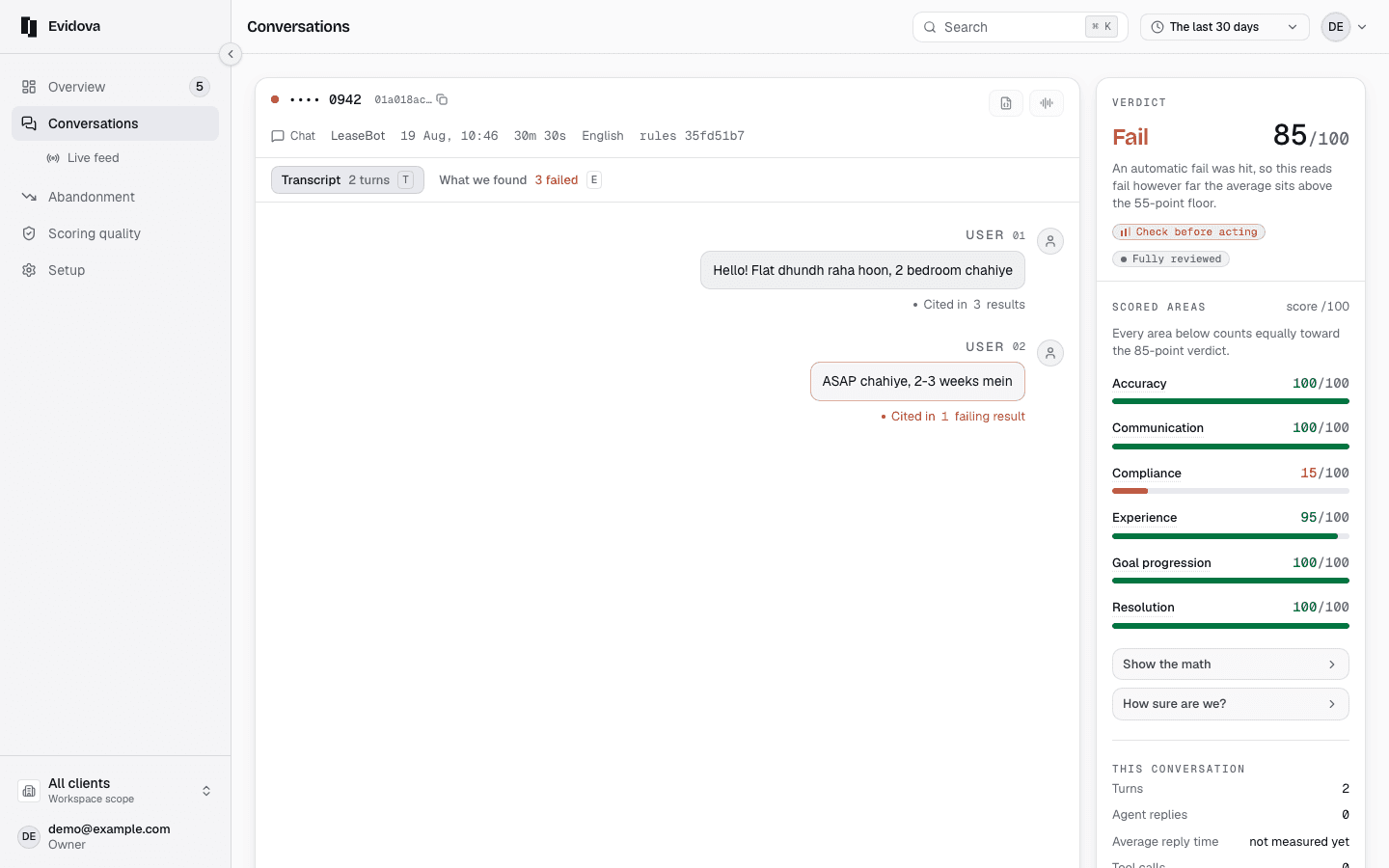
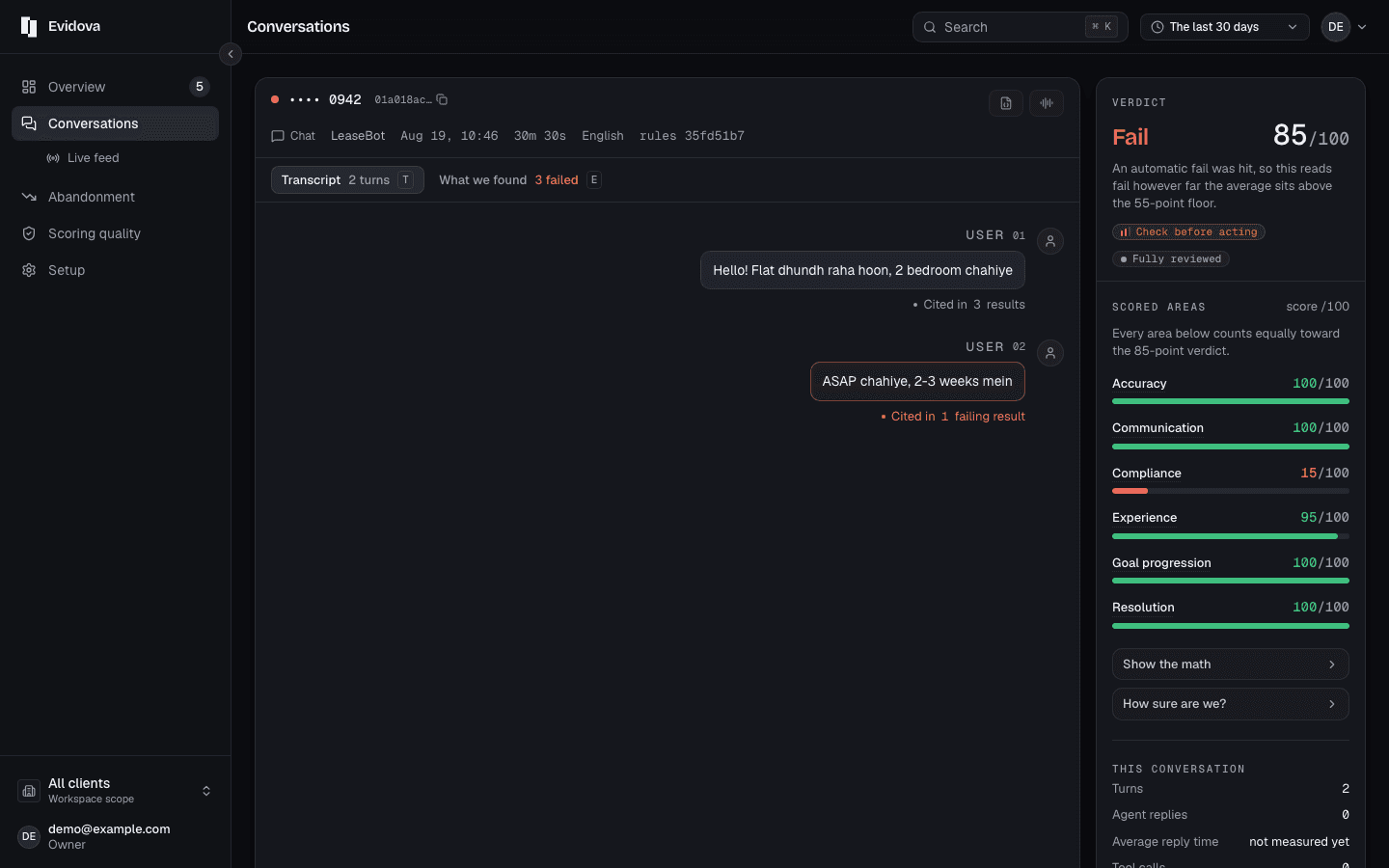
Narrow the list with the three controls above it.
Click a row. The conversation opens beside the list.
Move between Transcript and What we checked.
The tabs, or the T and E keys.
Read What we checked. Problems come first.
Everything that held, everything the judges split on, and everything not measured sits in groups below.
Press Show on a result.
Exactly what the judge was given.
Click the turn number on a result.
It jumps to that turn, and on a call it moves the recording to the same point.
Open The rule on any result.
The question it asks, its score area, its severity, and the Rules version that froze it.
Record Agree or Disagree.
Disagree asks what is wrong with it, and your answer is kept.
What the filters offer
| Status | All, Pass, Needs a look, Fail, Nothing to judge |
|---|---|
| Channel | All, WhatsApp, Call, Chat |
| Order | Most recent, Worst first |
| Cited in | From a turn, the results that turn is evidence for |
Reading it right
- One conversation tells you which words failed. It does not tell you how often. Go back to Abandonment to find out whether it is one call or a pattern.
- Your Agree and Disagree answers are the examples Scoring quality measures the judge against. Recording them as you read is the cheapest way to make that screen mean something.
- Copy the conversation id from the header when you need to refer to it elsewhere.
Read next
- Add a rule of your own · Write a question you want asked of every conversation, and put it live.
- Approve a suggested rule · Review a rule we drafted from your own documents before it counts.
- Set an alert · Get told when quality or latency drifts, without being told forty times a day.