Set an alert
Get told when quality or latency drifts, without being told forty times a day.
Use this to hear about a slow agent at nine in the morning, and not from a client at five.
Open Overview, then What needs a person indented under it.
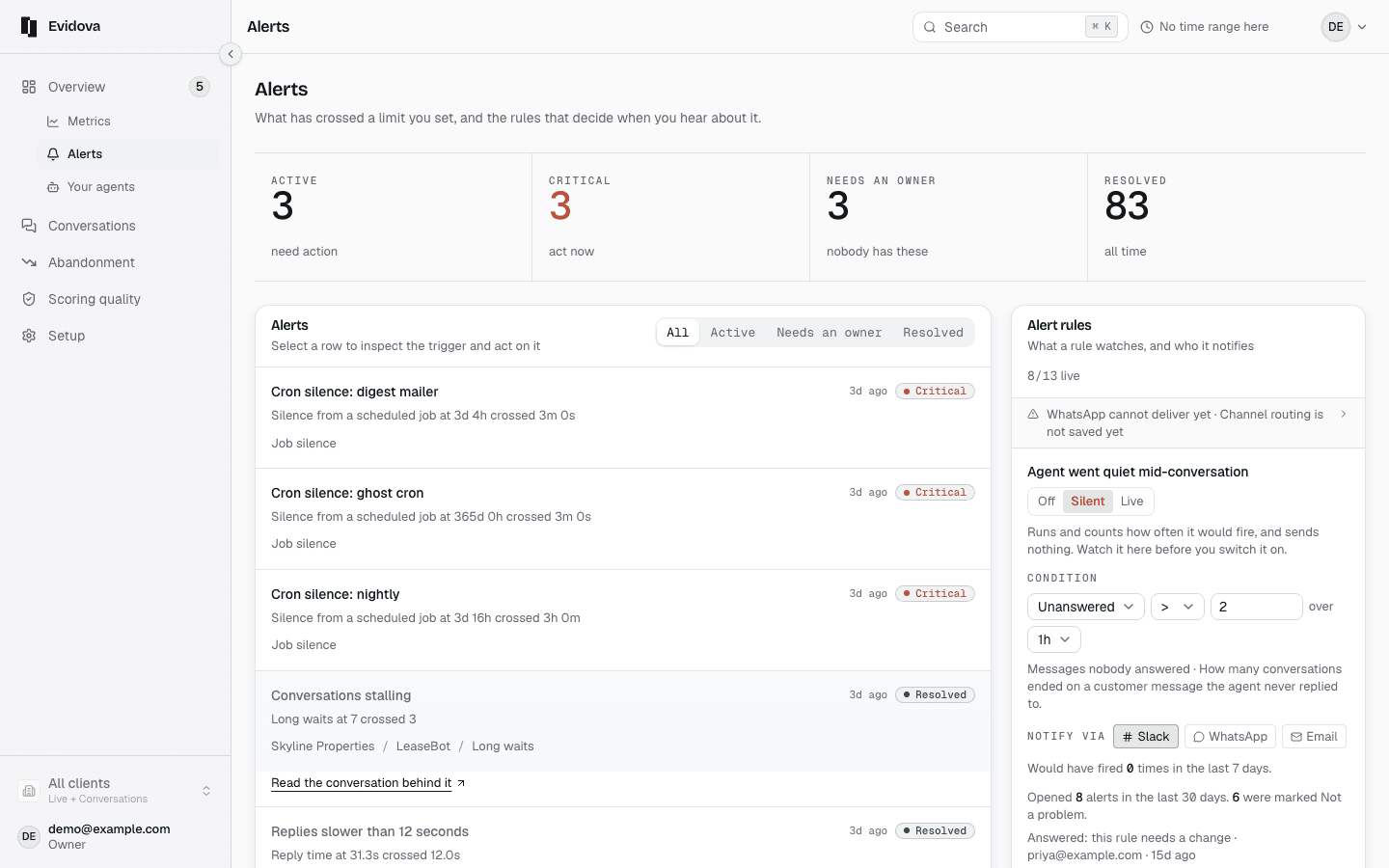
Read Where it stands.
Every state an alert can be in, and how many sit in each.
Read a row.
When it fired, what fired, its level, what it watches, and where it stands.
Press Download CSV for the queue as a file.
Open Setup, then When to tell you.
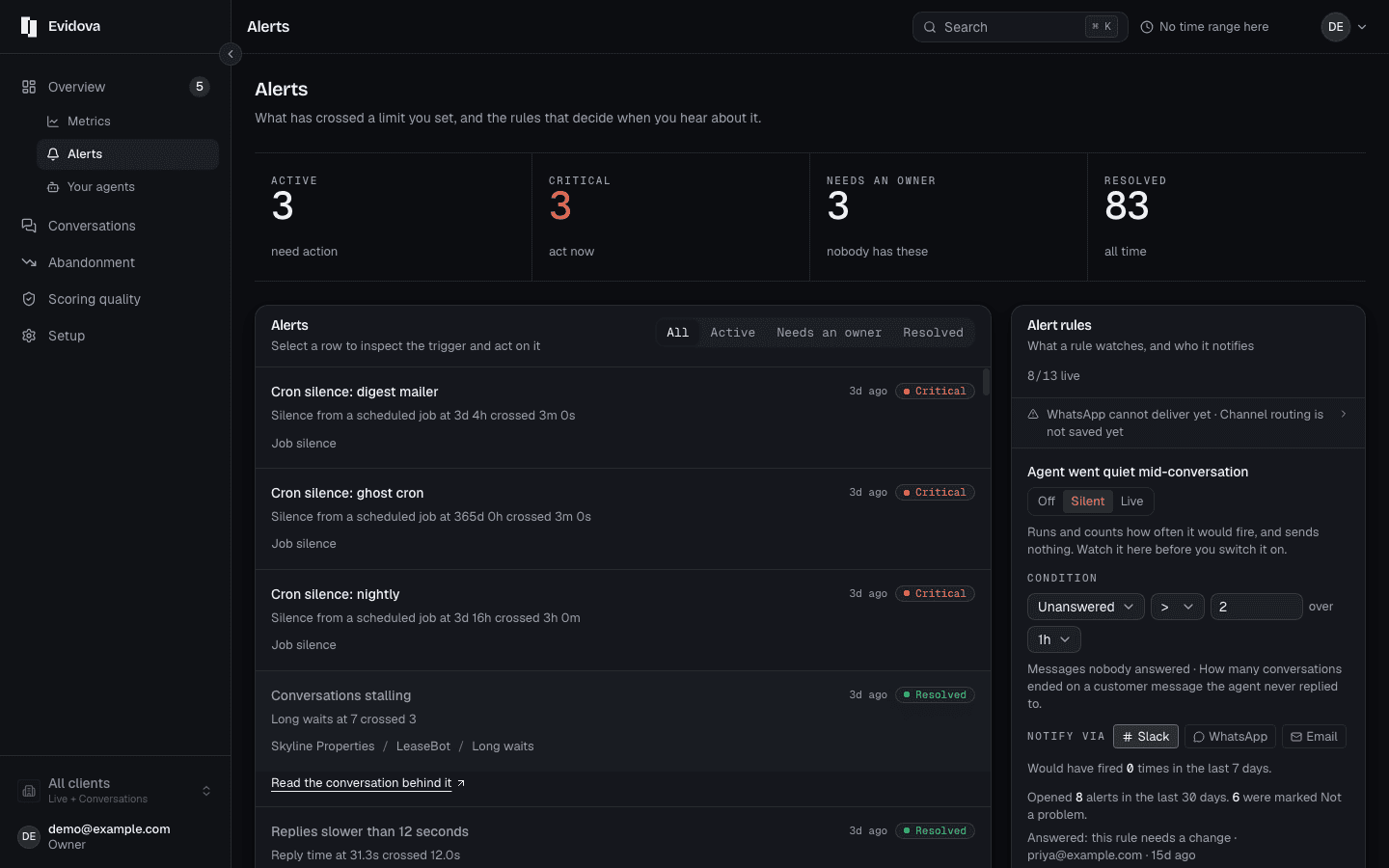
Every rule this workspace has, and how many of them are live.
Set Which measure, Which comparison and Over what period.
Set Which level, and How long it stays quiet.
Interrupt me and Monday summary are the two levels, and they route differently.
Press Pause it, or Start it again.
Read What a quiet rule would have caught.
It counts what a rule would have fired without telling anyone, which is how you test a number.
Read Where an alert goes.
Email, Slack or Webhook. A read never returns an address, so it is changed here.
The states, and the answers
| Live | Runs the rule and tells whoever it is routed to |
|---|---|
| Paused | Keeps measuring and sends nothing |
| Watching quietly | Runs the rule, counts what it would have fired, sends nothing |
| Where an alert stands | New, Mine, Waiting on engineering, Fixed - watching, Not a problem |
| The queue's range | At most thirty one days, so nothing older is read here |
Reading it right
- Noise is what kills an alert, and the control for noise is Watching quietly, not a limit you guess at.
- Rules you keep waving away counts your dismissals. Enough of them and it asks whether the rule needs changing.
- The queue reads thirty one days at most. Download the CSV before you need anything older than that.
Read next
- Send a report to a client · Produce a dated report you can forward to a client, and the conversation list behind it.
- Add an agent or a client · Register another agent, or another customer whose traffic you keep separate.
- Give someone one client only · Let a partner see their own conversations and nothing else.